How to Add Testimonials to Your Webflow Site

Learn how to easily embed beautiful, customizable testimonial widgets into your Webflow site using VouchView - no coding required!

VouchView Team

How to Add Testimonials to Your Webflow Site

Customer testimonials are one of the most powerful tools for building trust and converting visitors into customers. In this comprehensive guide, we'll show you exactly how to add stunning testimonial widgets to your Webflow site using VouchView, a powerful testimonial management platform.

Why Testimonials Matter for Your Webflow Site

Before diving into the implementation, let's understand why testimonials are crucial:

  • Build Trust: 92% of consumers read reviews before making a purchase decision

  • Increase Conversions: Testimonials can increase conversion rates by up to 34%

  • Social Proof: They provide authentic validation from real customers

  • SEO Benefits: Fresh, user-generated content helps with search rankings

What is VouchView?

VouchView is a comprehensive testimonial collection and display platform that makes it incredibly easy to:

  • Collect testimonials through customizable forms

  • Import testimonials from Social Media, CSV files and more

  • Create beautiful, responsive testimonial widgets

  • Embed widgets anywhere with a simple code snippet

  • Support both text and video testimonials

Step 1: Setting Up Your VouchView Account

First, you'll need to create a VouchView account and set up your first testimonial campaign:

  1. Visit VouchView.com and sign up for a free account

  2. Create your first testimonial campaign

  3. Customize your collection form with your branding

  4. Start collecting testimonials from your customers

Step 2: Creating Your Testimonial Widget

Once you have testimonials collected, it's time to create a widget for your Webflow site:

  1. Navigate to the "Widgets" section in your VouchView dashboard

  2. Click "Create New Widget"

  3. Choose your widget type and customize the appearance

Step 3: Customizing Your Widget Appearance

VouchView provides extensive customization options to match your Webflow site's design:

Visual Customization

  • Colors: Background, text, accent, border, and rating star colors

  • Typography: Font family, size, weight, and line height

  • Spacing: Compact, normal, or relaxed spacing options

  • Borders: Rounded corners from none to large radius

  • Shadows: None, small, medium, large, or brutal (neo-brutalist) shadows

Content Display Options

  • Element Order: Drag and drop to reorder rating, content, and author sections

  • Show/Hide Elements: Toggle visibility of ratings, avatars, company names, etc.

  • Text Alignment: Left, center, or right alignment

  • Source Attribution: Display where testimonials came from (campaign form, social media, etc.)

Step 4: Getting Your Embed Code

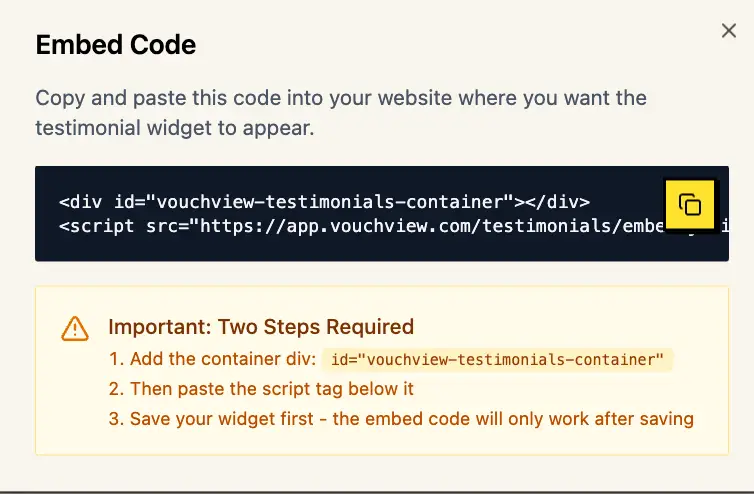
After customizing your widget, VouchView generates a simple embed code:

  1. Click "Get Embed Code" in your widget settings

  2. Copy the provided JavaScript snippet

    This line of code will load your entire testimonial widget with all customizations applied.

Step 5: Adding the Widget to Your Webflow Site

Now comes the easy part - adding your testimonial widget to Webflow:

Method 1: Using an Embed Element (Recommended)

  1. Open your Webflow project in the Designer

  2. Navigate to the page where you want to add testimonials

  3. Drag an "Embed" element from the Add panel to your desired location

  4. Paste your VouchView embed code into the embed element

  5. Click "Save & Close"

Method 2: Adding to Page Settings (For Global Placement)

If you want testimonials to appear on multiple pages:

  1. Go to Page Settings in Webflow

  2. Scroll to the "Custom Code" section

  3. Add your embed code to the "Before tag" section

  4. Create a div with id="vouchview-testimonials-container" where you want the widget to appear

Here's a tutorial on how to add custom code to your webflow site:

Step 6: Styling and Positioning in Webflow

Once your widget is embedded, you can style its container in Webflow:

Container Styling Tips

  • Width: Set max-width to control widget size on large screens

  • Margins: Add appropriate spacing around the widget

  • Background: Consider adding a background color or pattern

  • Padding: Add internal spacing if needed

Responsive Considerations

VouchView widgets are fully responsive, but you can enhance the experience:

  • Test on all Webflow breakpoints

  • Adjust container widths for different screen sizes

  • Consider different widget layouts for mobile vs desktop

Performance Optimization

To ensure fast loading:

  • VouchView widgets load asynchronously and won't block page rendering

  • Images are optimized and served from a CDN

  • Videos use lazy loading for better performance

Best Practices for Testimonial Placement

Strategic Locations

Consider placing testimonials in these key areas of your Webflow site:

  • Homepage Hero: Single powerful testimonial or carousel

  • Product Pages: Product-specific testimonials near purchase buttons

  • About Page: Grid layout showing customer diversity

  • Pricing Page: Address common objections with relevant testimonials

  • Landing Pages: Case study format for detailed social proof

Troubleshooting Common Issues

Widget Not Appearing

If your testimonial widget isn't showing up:

  1. Check that the embed code is correctly pasted

  2. Ensure the widget is published in VouchView

  3. Verify there are approved testimonials in your campaign

  4. Check browser console for any JavaScript errors and try to report to us at support@vouchview.com we would love to solve it for you.

SEO Benefits and Considerations

SEO Advantages

VouchView testimonials provide several SEO benefits:

  • Fresh Content: Regular testimonial updates provide new content

  • Keywords: Customer language often includes valuable keywords

  • User Engagement: Testimonials increase time on page

  • Social Signals: Authentic reviews boost credibility

Technical SEO

  • Testimonials are rendered as HTML for search engine crawling

  • Structured data markup for rich snippets.

  • Fast loading times don't hurt page speed scores

Pricing and Plans

VouchView offers flexible pricing to suit different needs:

  • Free Plan: Basic testimonial collection and display

  • Pro Plan: Advanced customization and video testimonials

  • Business Plan: For the teams that prioritise testimonials for their growth

    All plans include the core embedding functionality needed for Webflow integration.

Conclusion

Adding testimonials to your Webflow site with VouchView is straightforward and powerful. The combination of Webflow's design flexibility and VouchView's testimonial management creates a perfect solution for building trust and increasing conversions.

Key takeaways:

  • VouchView makes testimonial collection and display effortless

  • Multiple widget layouts suit different page sections and purposes

  • Extensive customization ensures perfect brand alignment

  • Video testimonials add powerful social proof

  • Simple embed code integration requires no technical expertise

Start collecting and displaying testimonials today to transform your Webflow site into a conversion machine. Your customers' voices are your most powerful marketing tool – let VouchView help you amplify them.


Ready to get started? Sign up for VouchView today and start collecting testimonials that will transform your Webflow site's conversion rates. With our easy-to-use platform and seamless Webflow integration, you'll have beautiful testimonials displaying on your site in minutes, not hours.

TAGS

#webflow#embed-testimonials#display-testimonials

Found this helpful?

Share it with your network

VouchView
Collect Testimonials Effortlessly

Build trust and boost conversions with authentic customer testimonials. VouchView makes it easy to collect, manage, and showcase social proof.

  • Easy collection forms
  • Beautiful display widgets
  • Automated requests