Your Framer site looks incredible. The animations are smooth, the design is polished, and your value proposition is clear. But there's one element that could dramatically boost your conversion rates: authentic customer testimonials.
Social proof isn't just a nice-to-have, it's essential. Studies show that displaying customer testimonials can lift conversion rates by over a third, and the vast majority of potential buyers actively seek out reviews before purchasing. Let's explore how to seamlessly integrate testimonials into your Framer project.
The Power of Social Proof in Modern Web Design
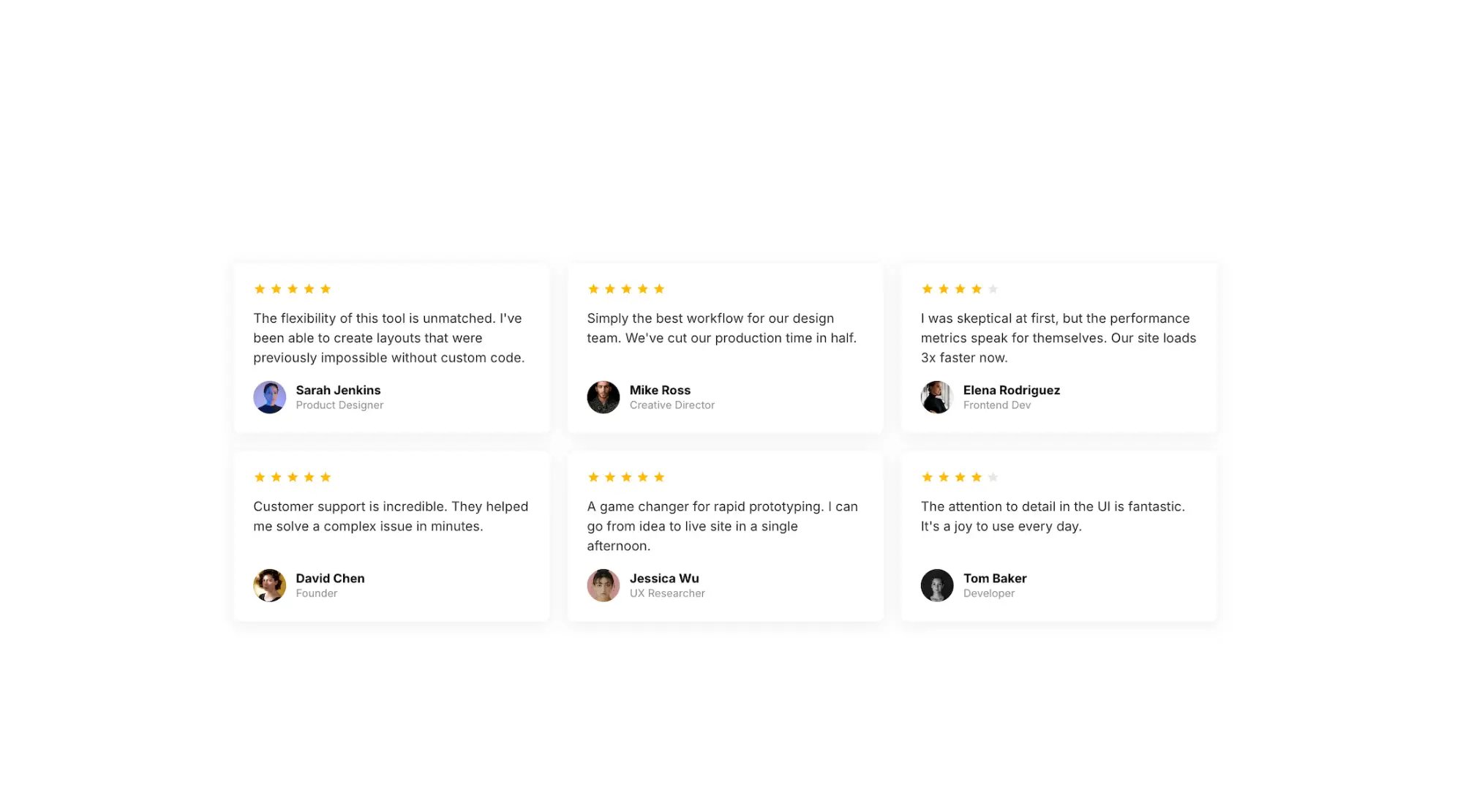
Framer users are typically building sites that need to convert whether that's SaaS products, agencies, portfolios, or digital products. Testimonials serve as third-party validation that your promises are real.
What makes testimonials particularly effective:
Authentic voice: Real customer language resonates more than marketing copy
Objection handling: Testimonials address concerns before prospects ask
Emotional connection: Stories create trust in ways features lists cannot
Conversion catalyst: Social proof at decision points reduces purchase anxiety
Introducing VouchView: Purpose-Built Testimonial Management
VouchView streamlines the entire testimonial lifecycle, from collection to display. The platform offers:
Branded collection forms that match your identity
Multi-channel imports from social platforms and CSV
Professional display widgets with extensive customization
Video testimonial support for maximum impact
Simple embedding that works beautifully with Framer
Building Your Testimonial Foundation
Account Creation and Campaign Setup
Start by establishing your VouchView workspace:
Create your account at VouchView.com
Launch your first testimonial campaign
Configure your collection form with brand colours and messaging
Begin gathering feedback from satisfied customers
The collection process is intentionally frictionless, customers receive a simple form they can complete in under two minutes.
Widget Creation and Configuration
With testimonials collected, you'll design how they appear on your site:
Access the Widgets dashboard
Initialize a new widget
Select your preferred display format and customize the way you want.

Design Customization for Framer Aesthetics
VouchView's styling engine offers granular control over appearance:
Visual Elements
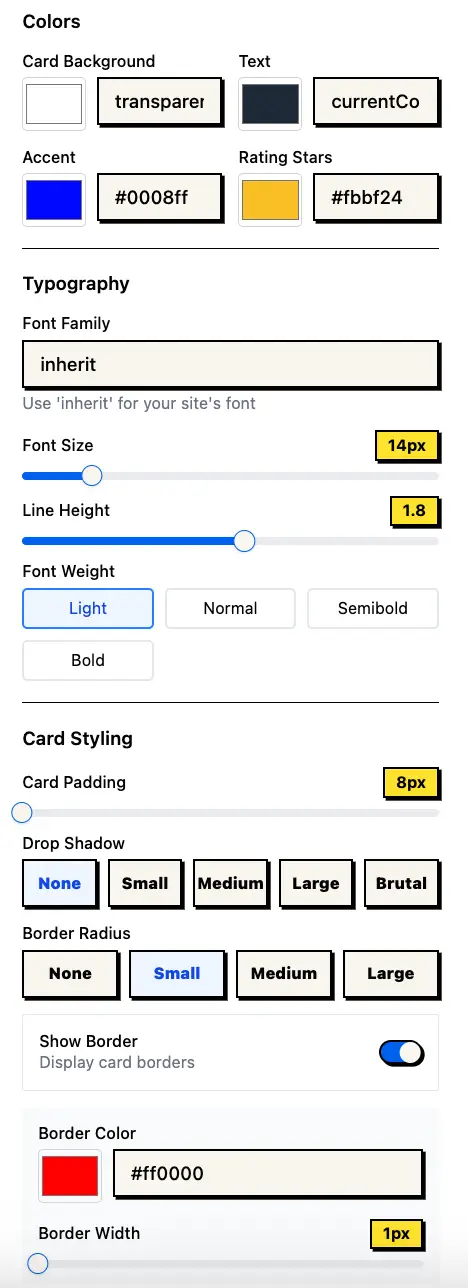
Color palette: Configure backgrounds, text, accents, borders, and rating stars
Typography system: Adjust font selections, sizing, weight, and spacing
Layout density: Choose between compact, standard, or spacious arrangements
Corner styling: From sharp edges to fully rounded borders
Shadow depth: Select from subtle to dramatic drop shadows, including neo-brutalist styles
Content Configuration
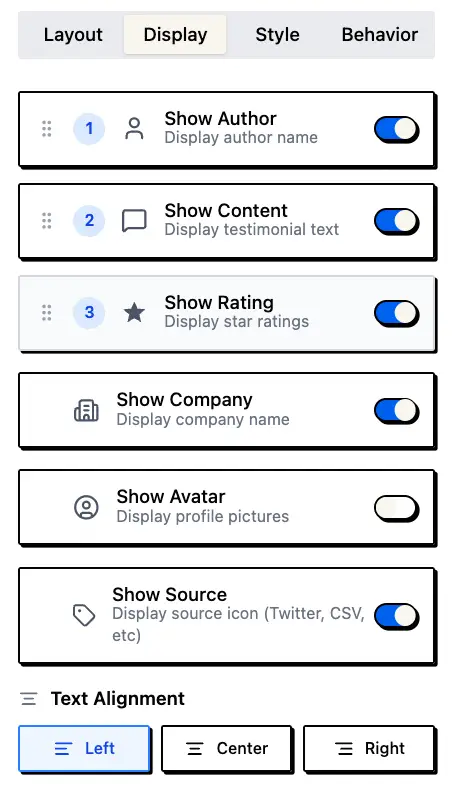
Component ordering: Rearrange rating, content, and author elements via drag-and-drop
Visibility controls: Show or hide specific elements like avatars, companies, or dates
Text positioning: Align content left, center, or right
Attribution display: Include or exclude testimonial source information
Retrieving Your Embed Code
Once your widget design is complete:
Select "Get Embed Code" within widget settings
Copy the JavaScript snippet provided
/im
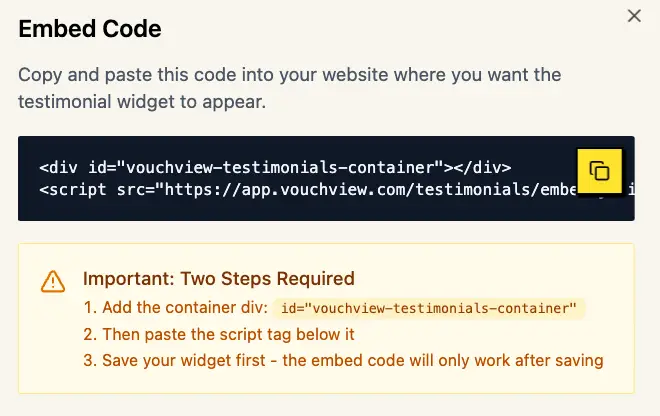
This single-line embed contains your entire widget configuration.
Integrating with Framer: Three Methods
Primary Method: Code Component (TSX)
Framer's Code component uses React/TSX, so we need to adapt the HTML embed code. Here's how:
Launch your Framer project
Navigate to your target page
Press Cmd/Ctrl + Enter to open the element picker
Search for and insert a "Code" component
Click the Code component on your canvas
Switch to the "Code" panel on the right
Replace the default code with this TSX template:
import { useEffect } from "react"

export default function VouchViewTestimonials() {
    useEffect(() => {
        // Create script element
        const script = document.createElement("script")
        script.src = "YOUR_SCRIPT_SRC_URL_HERE" // Replace with your VouchView script URL
        script.async = true
        document.body.appendChild(script)

        // Cleanup function
        return () => {
            document.body.removeChild(script)
        }
    }, [])

    return <div id="vouchview-testimonials-container" />
}
Your testimonials will now render properly on the canvas
Alternative: Page-Level Custom Code (Easiest Method)
For the simplest integration without writing any TSX code:
Select your page in the Framer layers panel
Click the page settings gear icon
Navigate to "Custom Code"
Choose "End of " (recommended)
Paste your complete VouchView embed code exactly as provided:
   <div id="vouchview-testimonials-container"></div>
   <script src="https://app.vouchview.com/testimonials/embed.js?id=YOUR_ID_HERE"></script>
Click "Save"
Your testimonials will now appear wherever you place the container div
Note: If you use this method, the testimonials will automatically render in the default location. To position them precisely, you can add an empty Frame on your canvas and give it the id vouchview-testimonials-container using Framer's HTML attributes feature.
Third Option: HTML Embed Component
Framer's native Embed component works with HTML:
Insert an "Embed" element via the insert menu (search for "Embed")
In the embed settings, ensure you're in HTML mode
Paste your complete VouchView embed code:
   <div id="vouchview-testimonials-container"></div>
   <script src="https://app.vouchview.com/testimonials/embed.js?id=YOUR_ID_HERE"></script>
Adjust the embed frame size to fit your layout
The testimonials will render within the embed frame
Pro tip: The Embed component method is great for quick testing, but the Custom Code method offers more styling flexibility.
Strategic Placement Across Your Site
High-Impact Locations
Position testimonials where they'll drive action:
Homepage below hero: Immediate credibility after your value prop
Feature sections: Reinforce claims with user validation
Pricing area: Overcome price objections with ROI testimonials
Case study pages: Deep-dive testimonials with detailed outcomes
Footer marquee: Persistent social proof across all pages
Advanced Implementation Techniques
Reusable Testimonial Components
Create consistent testimonial sections:
Design your section with the VouchView widget
Convert to a Component (Cmd/Ctrl + K)
Add component properties for different widget variants
Deploy across pages with consistent styling
Troubleshooting Guide
Widget Display Issues
If testimonials aren't appearing:
Verify embed code is correctly pasted in Code component
Confirm widget is published in VouchView dashboard
Check that approved testimonials exist in your campaign
Open browser console (Cmd/Ctrl + Option/Alt + I) for error messages
Ensure Code component frame has sufficient height
Visual Inconsistencies
If styling appears incorrect:
Widgets inherit site styling, check for CSS conflicts
Verify container frames don't have restrictive overflow settings
Adjust widget colors in VouchView to harmonize with Framer design
Test with different Framer layout modes
Mobile Display Problems
If testimonials break on smaller screens:
Use Framer's device simulator to test all breakpoints
Set breakpoint-specific heights for Code components
Consider different widget layouts per screen size
Maintain adequate padding on mobile devices
Performance Considerations
VouchView is optimized for speed:
Asynchronous loading prevents render blocking
CDN-delivered images for global performance
Lazy-loaded video content
Browser caching for returning visitors
Minimal JavaScript footprint
Framer Performance Tips
Limit Code components per page (3-5 maximum)
Enable lazy loading for below-the-fold sections
Prioritize critical content before testimonial sections
Use Framer's production export optimizations
Search Engine Optimization Benefits
Organic Ranking Advantages
Testimonials improve SEO through:
Fresh content signals: Regular updates indicate active sites
Natural keywords: Customer language matches search queries
Engagement metrics: Longer time-on-page from reading reviews
Trust signals: Authentic content builds domain authority
VouchView Pricing Overview
Flexible plans for every business:
Free tier: Essential collection and display features
Pro plan: Advanced customization plus video support
Business plan: Team collaboration and priority support
All tiers include full embedding functionality for Framer sites.
Conclusion
Framer's design flexibility combined with VouchView's testimonial platform creates a powerful conversion optimization tool. The integration is remarkably simple yet the impact on trust and credibility is substantial.
Implementation recap:
VouchView handles collection, management, and display seamlessly
Different widget types accommodate any design context
Extensive customization ensures brand consistency
Video testimonials provide maximum authenticity
Framer's Code component enables effortless embedding
Animation and responsive features create polished experiences
Your customers' experiences are your strongest marketing asset. By showcasing their voices authentically, you transform skeptical visitors into confident buyers.
Take action today: Set up your VouchView account and deploy your first testimonial widget. Within minutes, your Framer site will feature compelling social proof that drives measurable results.